


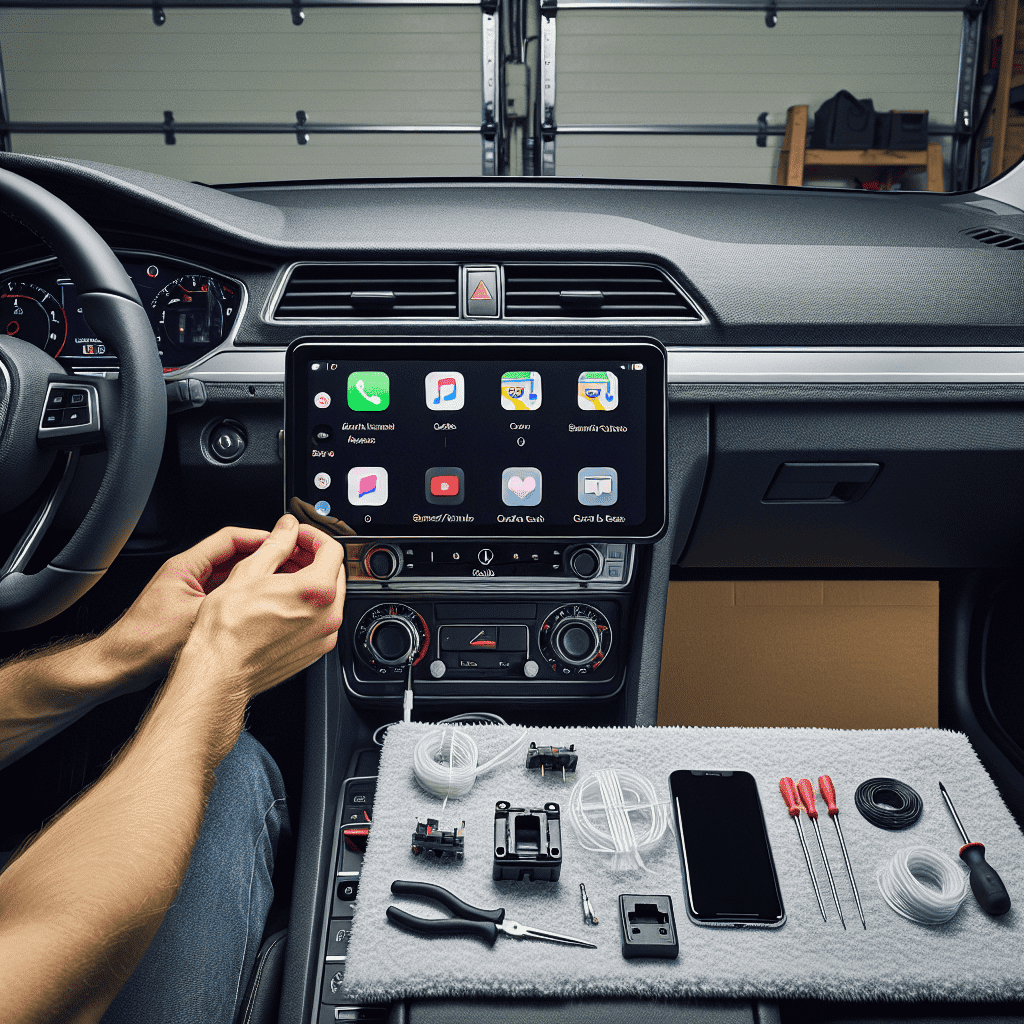
Apple CarPlay is one of the easiest ways to make an older car feel modern. You get maps, calls, music, and messages on a bigger screen. If your car did not come with CarPlay, you can still add it at home. This guide is for beginners. It uses simple tools and simple steps.
There are two main DIY options. The first is a portable CarPlay screen that mounts on the dash and plugs into power. The second is a replacement head unit (radio) with built-in CarPlay. Portable is easier and faster. A head unit looks cleaner, but it takes more time.
Tools and items needed
For a portable Apple CarPlay screen (easiest)
- Portable CarPlay screen (wired or wireless)
- Power source: 12V socket plug or hardwire kit (optional)
- Dash mount or windshield mount (usually included)
- Plastic trim tool (optional, for hiding wires)
- Alcohol wipe or glass cleaner (for a strong mount)
- Cable clips or small zip ties
For a CarPlay head unit (more work, cleaner look)
- CarPlay head unit that fits your dash opening (single-DIN or double-DIN)
- Vehicle-specific dash kit (if needed)
- Wiring harness adapter (very important)
- Antenna adapter (sometimes needed)
- Steering wheel control adapter (optional)
- Basic hand tools: screwdriver set, 10mm socket, ratchet
- Plastic trim tools
- Wire crimper or soldering iron (depends on harness type)
- Heat shrink or electrical tape
- Multimeter or test light (helpful)
If you like simple upgrades, you may also enjoy DIY car upgrades at home. Many of those projects pair well with a CarPlay add-on.
Safety or legal notes
- Park on a flat surface. Use the parking brake.
- For head unit installs, disconnect the negative battery terminal before touching wiring.
- Do not place a screen where it blocks your view of the road.
- Do not watch video on the screen while driving. In many places, that is illegal.
- Route cables away from pedals, steering parts, and airbags. Do not run a wire over an airbag cover.
Numbered installation steps
Option A: Portable Apple CarPlay screen install (about 20 to 45 minutes)
-
Pick the screen spot. Sit in the driver seat and hold the screen where you want it. Good spots are above the center vents or on the dash near the radio. You want it easy to reach, but not blocking the windshield.
-
Clean the mounting surface. Use an alcohol wipe or glass cleaner. Let it dry. Dirty dash surfaces often make mounts fall off later.
-
Attach the mount and screen. Follow the screen’s mount instructions. Tighten knobs so the screen does not shake while driving.
-
Choose your audio method. You have three common choices:
- AUX cable (best sound if your car has AUX)
- Bluetooth (easy, good quality on most cars)
- FM transmitter (works on older cars, but can get static)
If your screen supports multiple options, start with AUX or Bluetooth first.
-
Connect power. Plug into the 12V socket. Turn the key to accessory mode and confirm the screen powers on. If you hate dangling wires, you can tuck the cable into trim gaps using a plastic trim tool.
-
Route and secure cables. Run cables along dash edges. Use clips or zip ties. Keep cables out of the driver footwell. Make a small loop near the screen so you can adjust the angle without pulling the cable tight.
-
Pair your phone for CarPlay. For wireless CarPlay, connect Bluetooth first, then follow the screen prompts. For wired CarPlay, plug your iPhone into the screen’s USB port.
-
Test the basics. Check maps, call audio, music, and microphone quality. If call audio sounds wrong, check if the sound is coming from the car speakers or the screen speaker. Set it the way you prefer.
Option B: CarPlay head unit install (about 2 to 5 hours)
-
Disconnect the battery. Remove the negative terminal and set it aside so it cannot touch the post.
-
Remove dash trim. Use plastic trim tools. Work slowly. Many panels are held by clips. Put screws in a cup so you do not lose them.
-
Remove the factory radio. Usually it is held by 4 bolts. Pull it out and unplug the connectors and antenna.
-
Prep the wiring harness. Match the harness adapter to the new head unit harness. Most are color-to-color. Connect by crimping or soldering. Cover connections with heat shrink or tape. If you are not sure, stop and confirm the wire labels.
-
Add optional adapters. If you want steering wheel buttons to work, install the steering wheel control adapter now. Follow its instructions closely. This step varies by car.
-
Test before bolting everything in. Plug in the harness and antenna. Reconnect the battery. Turn the key on and check power, sound, and CarPlay. Then disconnect the battery again before final mounting.
-
Mount the head unit. Install the dash kit brackets if needed. Slide the unit in and secure it with screws.
-
Run the microphone and USB (if included). Many head units use an external microphone. Mount it near the driver, like at the top of the A-pillar trim or on the steering column cover. Do not place it over an airbag area. Route the USB to a console pocket for easy phone connection.
-
Reinstall dash trim. Snap panels back in. Tighten screws. Reconnect the battery and do a final test drive.
Common mistakes
- Mounting the screen too high. It can block your view and feel distracting.
- Running cables near pedals. This is a real safety risk. Always secure cables away from feet.
- Using FM when AUX is available. FM can add noise. Try AUX or Bluetooth first.
- Skipping the wiring harness adapter on a head unit install. It can turn a simple job into a wiring mess.
- Not testing before reassembly. Always test power and sound before you put trim panels back.
Maintenance tips
- Wipe the screen with a microfiber cloth. Avoid harsh cleaners.
- If the mount gets loose, retighten it and clean the mounting surface again.
- Check cable routing every few months. Heat and vibration can pull wires out of clips.
- If wireless CarPlay drops out, remove the device from Bluetooth on both ends and pair again.
Is it worth it?
For most drivers, yes. A portable CarPlay screen is the best value if you want an easy weekend project. It gives you modern features without touching factory wiring. A CarPlay head unit is worth it if you want the cleanest look, better audio control, and less clutter on the dash.
If you are already comfortable pulling trim panels and routing wires, you can take on more in-car electronics next, like a DIY dash cam install.
Clean conclusion
Adding Apple CarPlay at home is a beginner-friendly upgrade if you pick the right approach. Go portable for the quickest install. Go head unit if you want a factory-like finish. Take your time with mounting and cable routing, and test everything before you button the dash back up. You will end up with a safer, easier way to use your phone in the car.


